Each chat on ClankWorld can use a different proxy. This lets you try different models with different characters, or keep one chat on the platform default while another uses your own API key.

Selecting a Proxy for a Chat

1
Open the Proxy modal
2
In the chat you want to configure, open the Proxy settings.
3
Opening the Proxy modal from a chat
4
Choose a proxy
5
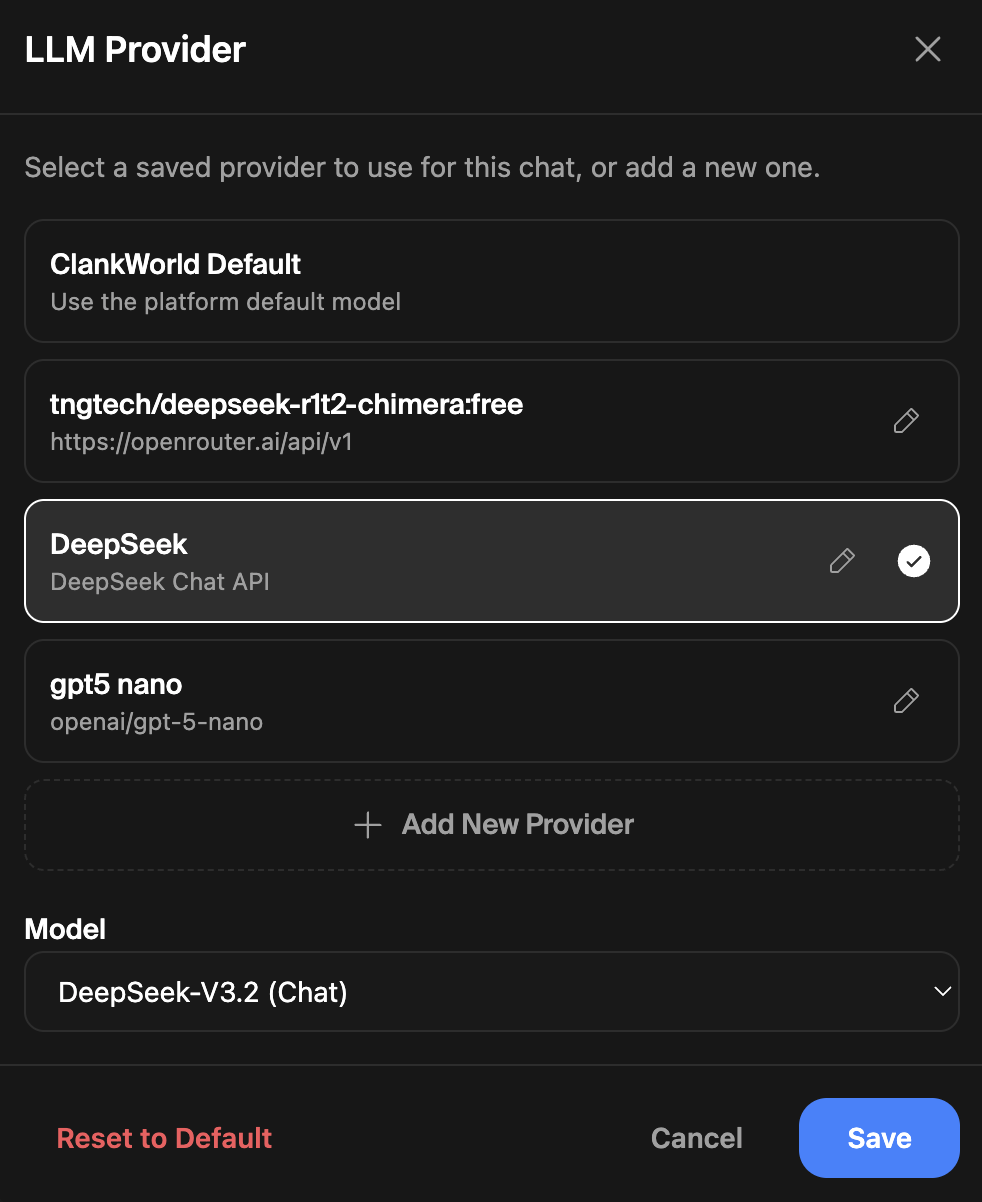
You’ll see a list of your saved proxies plus the ClankWorld Default option. Select the one you want for this chat.
6
Selecting a saved proxy for a chat
7
Pick a model (if applicable)
8
For proxies with multiple models (DeepSeek, Claude, Gemini), a Model dropdown appears after selecting the proxy. Choose the specific model you want.
9
For Custom and OpenRouter proxies, the model is set during proxy configuration.
10
Model selection dropdown
11
Save
12
Click Save to apply. The chat will now use the selected proxy and model for all future messages.

Switching Back to Default

Open the Proxy modal, select ClankWorld Default, and click Save. If you’ve already been using a custom proxy, you can also click Reset to Default at the bottom of the modal.
Reset to Default button

How It Works

  • Proxy selections are per-chat — changing one chat doesn’t affect others
  • Your saved proxies are global — configured once, available in any chat
  • API keys are encrypted at rest and never exposed in the UI after saving
  • The proxy modal shows the currently active proxy with a checkmark