Supported Providers
| Provider | Description |
|---|---|
| DeepSeek | DeepSeek Chat API (V3.2 Chat and Reasoner models) |
| Claude | Anthropic Claude API (Sonnet 4.5, Haiku 4.5, Opus 4.5) |
| Gemini | Google Gemini API (3.0 Flash, 3.0 Pro, 2.5 Flash, 2.5 Pro) |
| OpenRouter | Access 100+ models through a single API key |
| Custom | Any OpenAI-compatible API endpoint |
Adding a Provider
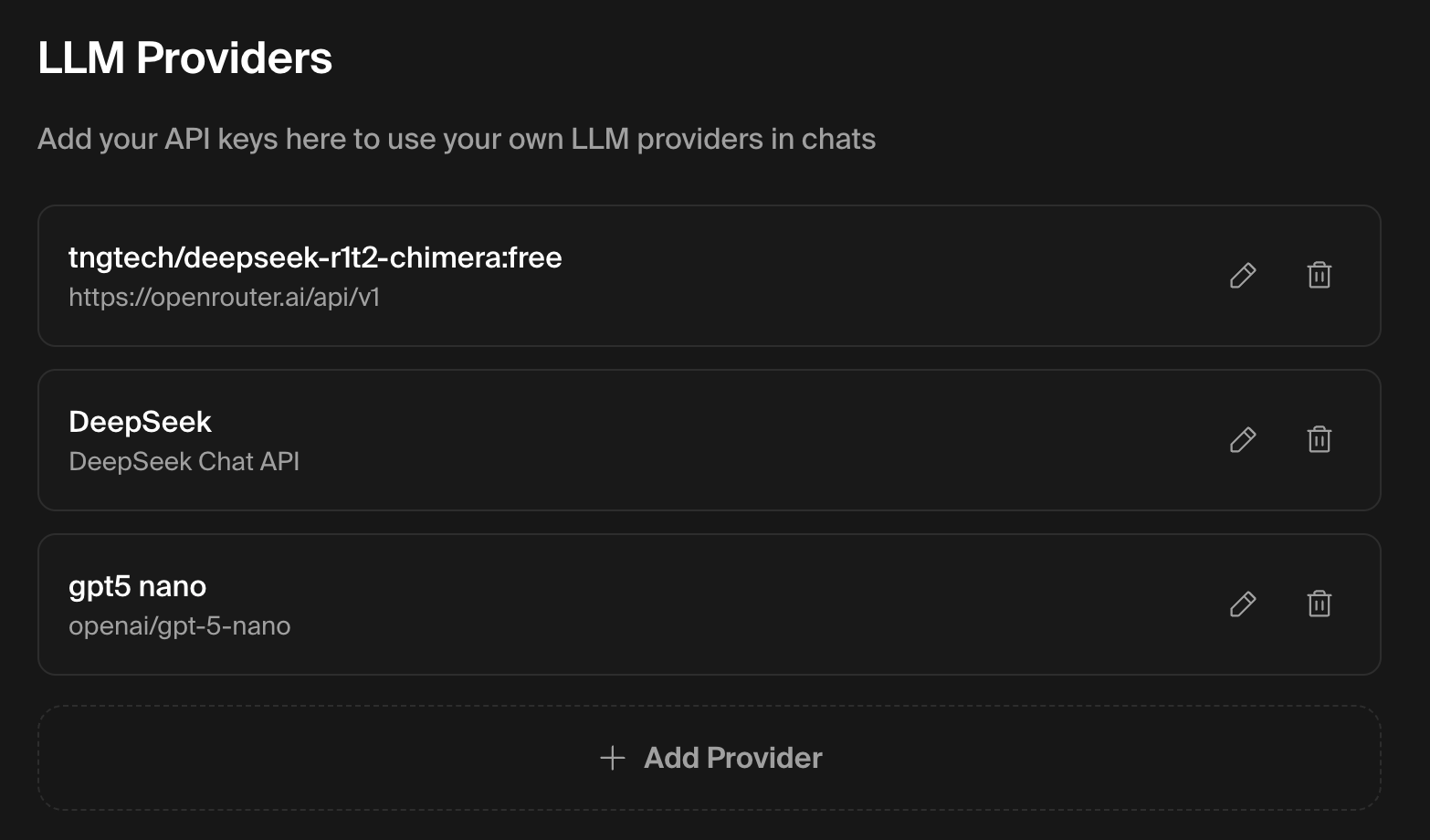
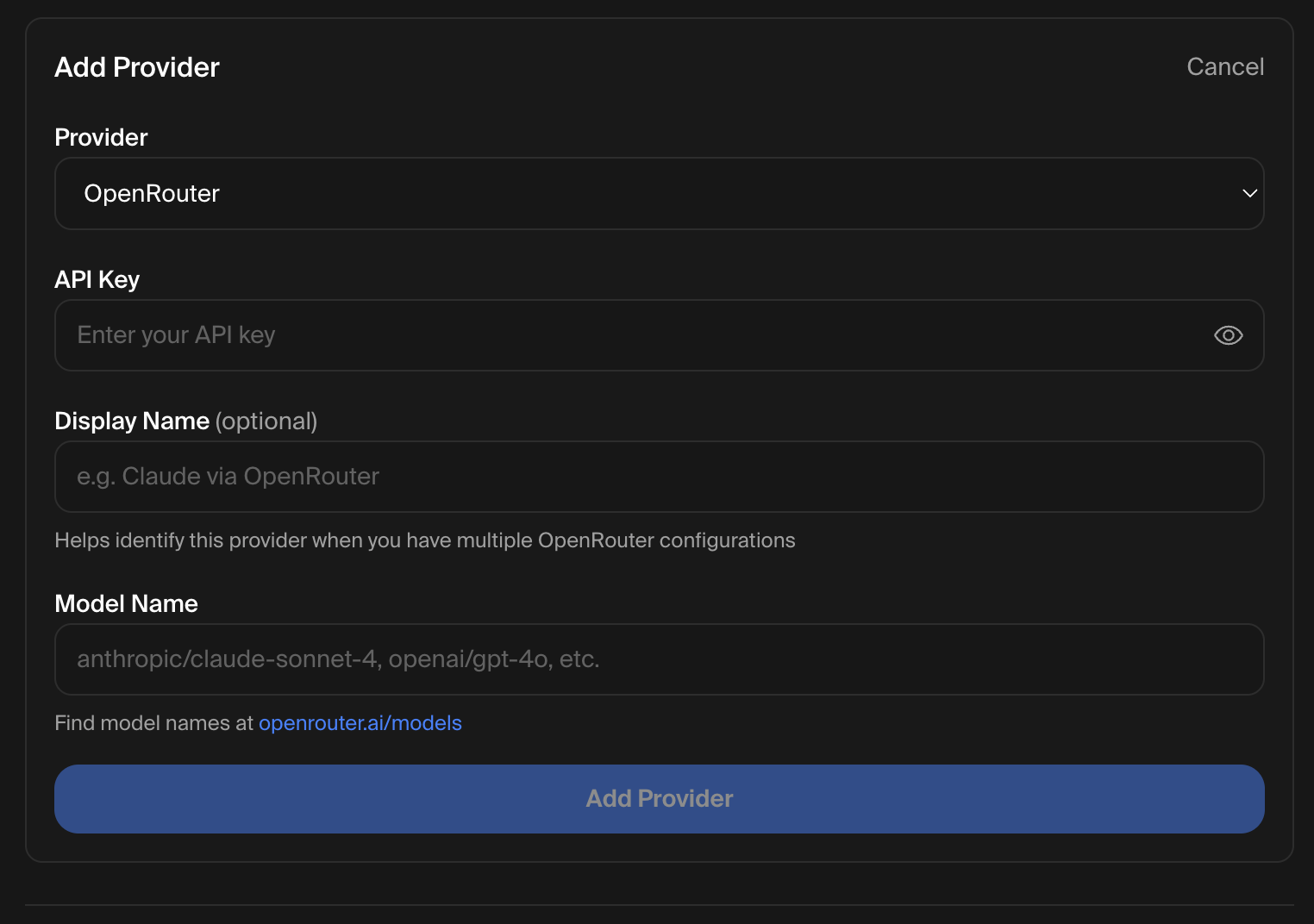
Each provider type can only be added once, except for Custom and OpenRouter which allow multiple configurations.
DeepSeek / Claude / Gemini
No extra configuration needed. Just provide your API key and you’re set. You’ll choose a specific model when selecting the provider for a chat.
OpenRouter
- Display Name (optional) — helps you tell apart multiple OpenRouter configs
- Model Name — the OpenRouter model identifier, e.g.
anthropic/claude-sonnet-4,openai/gpt-4o
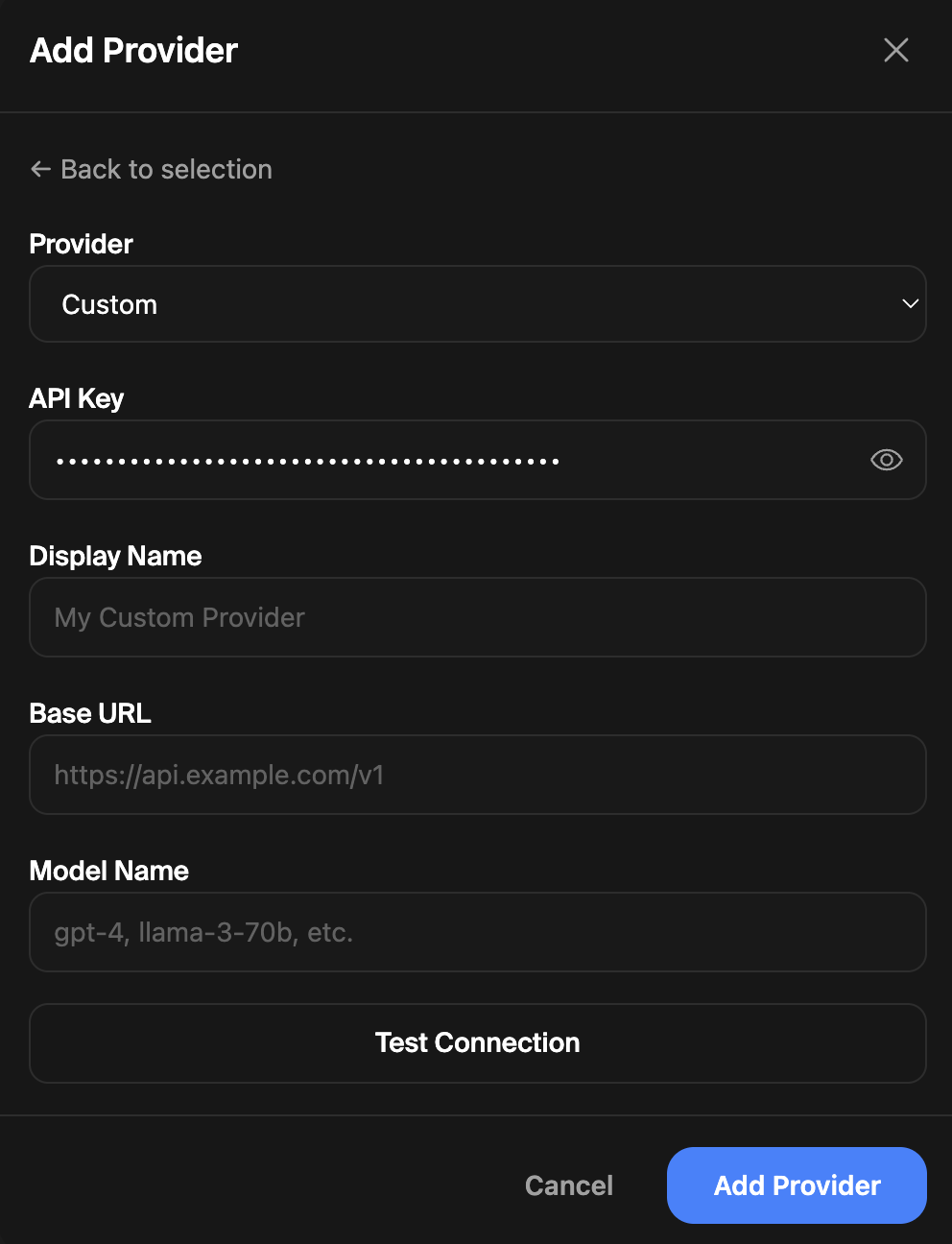
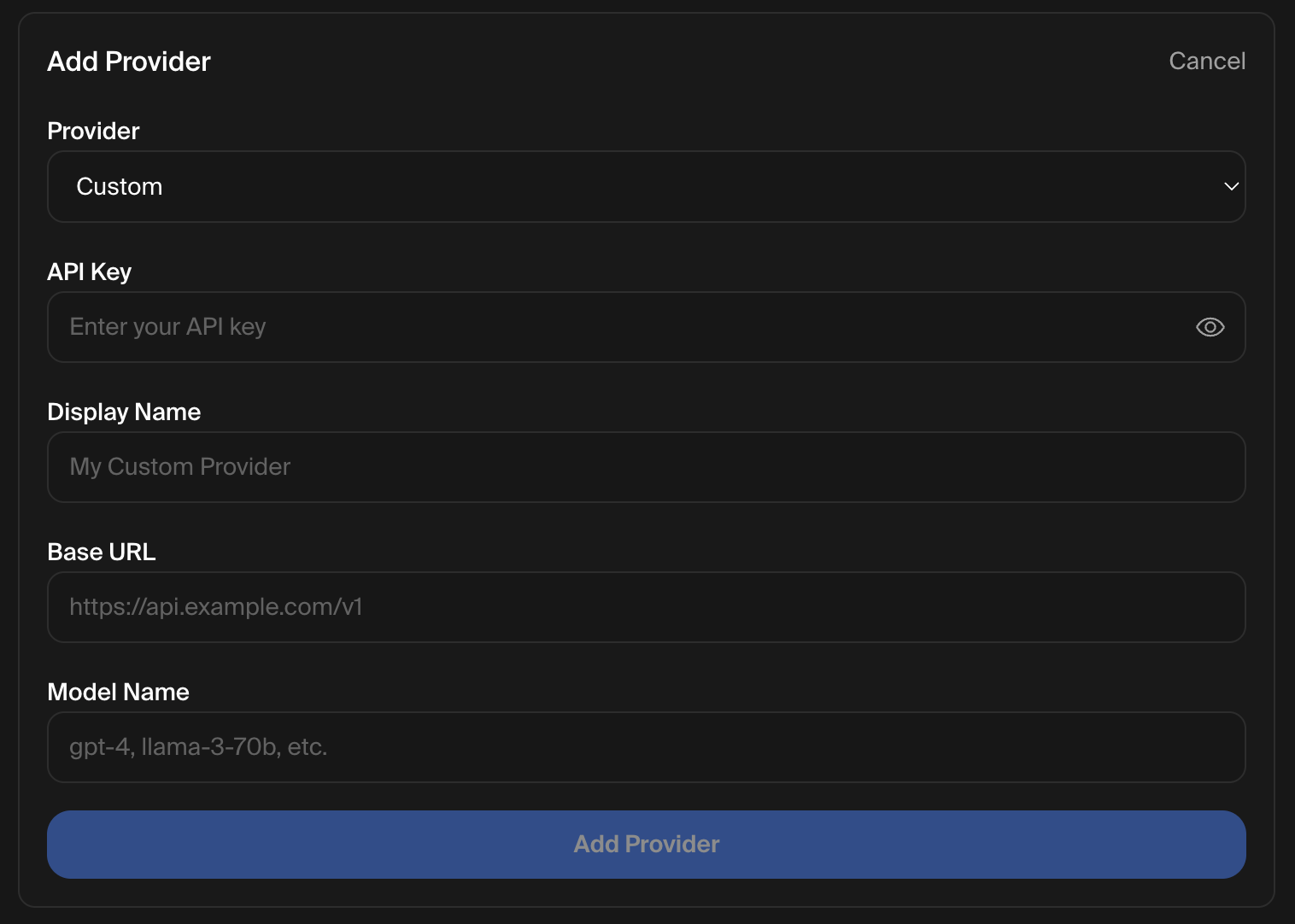
Custom (OpenAI-compatible)
- Display Name — a label for this provider
- Base URL — your API endpoint, e.g.
https://api.example.com/v1 - Model Name — the model identifier your endpoint expects, e.g.
gpt-4,llama-3-70b
Editing a Provider
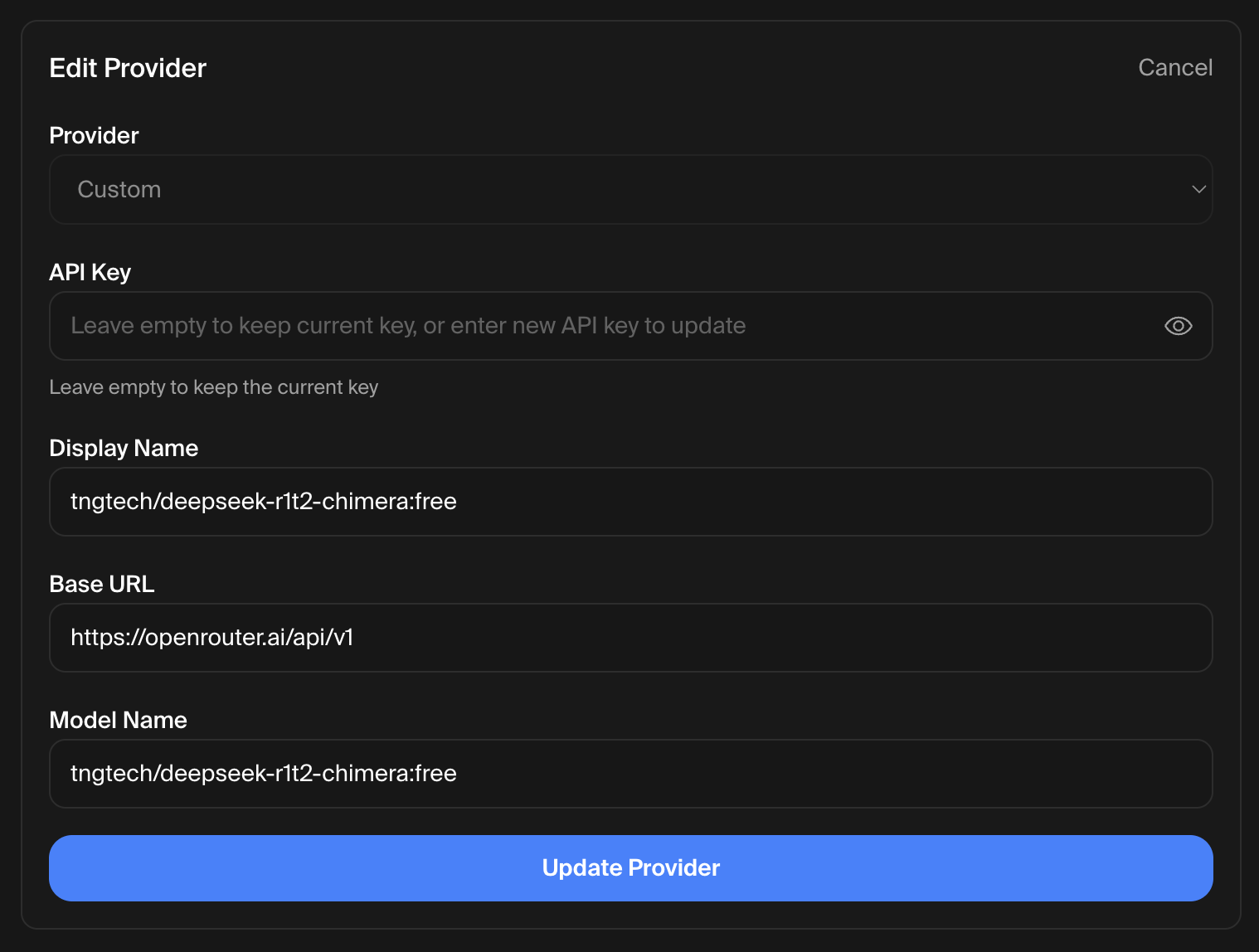
From the provider selection list, click the pencil icon next to any saved provider to update its configuration. You can change the base URL, model, or display name. Leave the API key field empty to keep the current key, or enter a new one to replace it.