> ## Documentation Index
> Fetch the complete documentation index at: https://docs.clank.world/llms.txt
> Use this file to discover all available pages before exploring further.
# Connect a Proxy
> Use your own API keys to chat with any model on ClankWorld
ClankWorld supports connecting your own proxy so you can use any model for your chats. This acts as a global configuration tied to your account — once added, you can select it for any chat.
## Supported Proxies
| Proxy | Description |
| -------------- | ---------------------------------------------------------- |
| **DeepSeek** | DeepSeek Chat API (V3.2 Chat and Reasoner models) |
| **Claude** | Anthropic Claude API (Sonnet 4.5, Haiku 4.5, Opus 4.5) |
| **Gemini** | Google Gemini API (3.0 Flash, 3.0 Pro, 2.5 Flash, 2.5 Pro) |
| **OpenRouter** | Access 100+ models through a single API key |
| **Custom** | Any OpenAI-compatible API endpoint |
## Adding a Proxy
### Open Settings
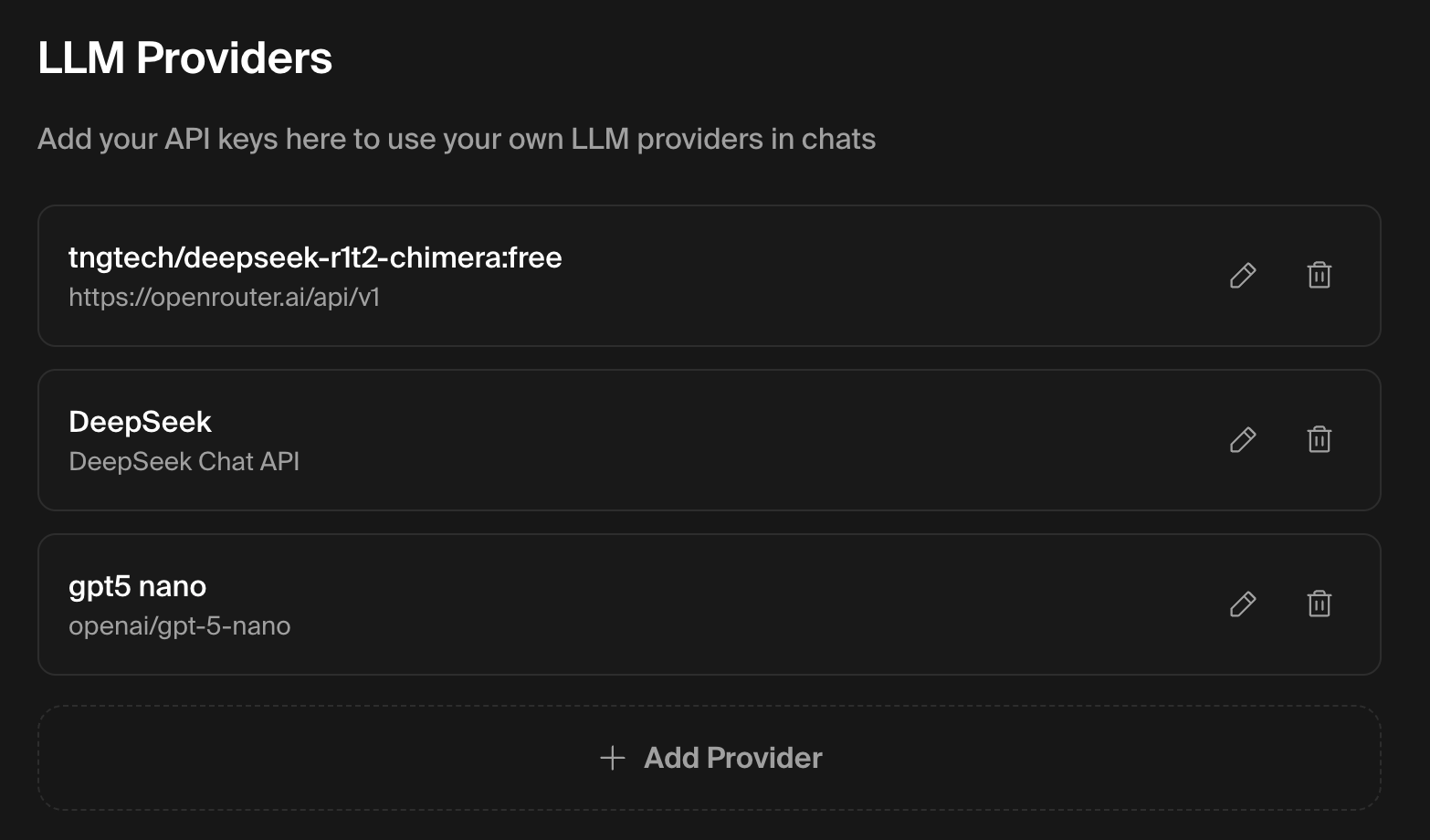
From settings, look at the **Proxies** section. Click **Add Proxy**.
 ### Select a proxy type
Choose from the dropdown: DeepSeek, Claude, Gemini, OpenRouter, or Custom.
### Select a proxy type
Choose from the dropdown: DeepSeek, Claude, Gemini, OpenRouter, or Custom.
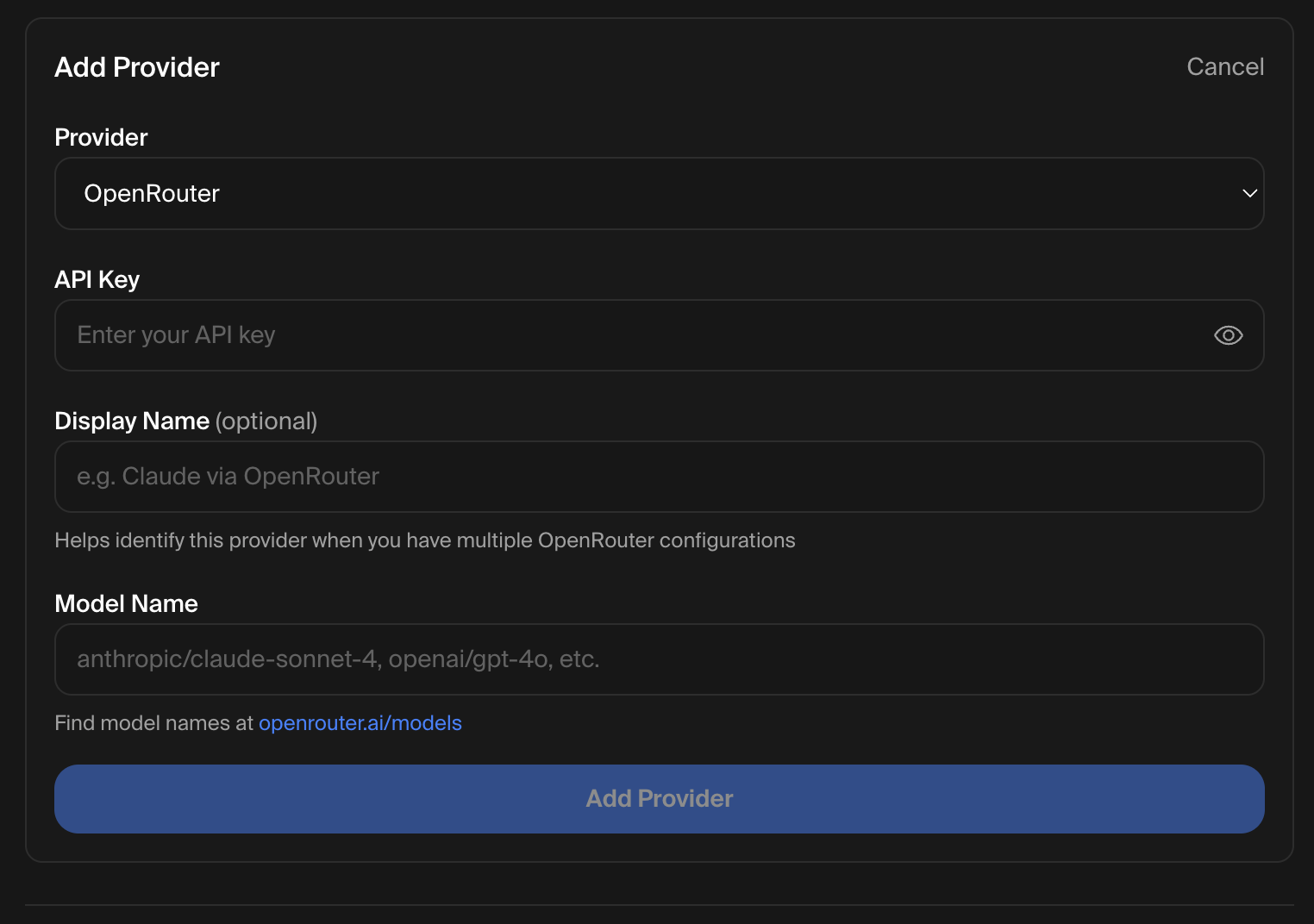 Each proxy type can only be added once, except for **Custom** and **OpenRouter** which allow multiple configurations.
### Enter your API key
Paste your API key. Keys are encrypted before being stored.
Each proxy type can only be added once, except for **Custom** and **OpenRouter** which allow multiple configurations.
### Enter your API key
Paste your API key. Keys are encrypted before being stored.
 ### Configure proxy-specific fields
No extra configuration needed. Just provide your API key and you're set. You'll choose a specific model when selecting the proxy for a chat.
* **Display Name** (optional) — helps you tell apart multiple OpenRouter configs
* **Model Name** — the OpenRouter model identifier, e.g. `anthropic/claude-sonnet-4`, `openai/gpt-4o`
Find model names at [openrouter.ai/models](https://openrouter.ai/models).
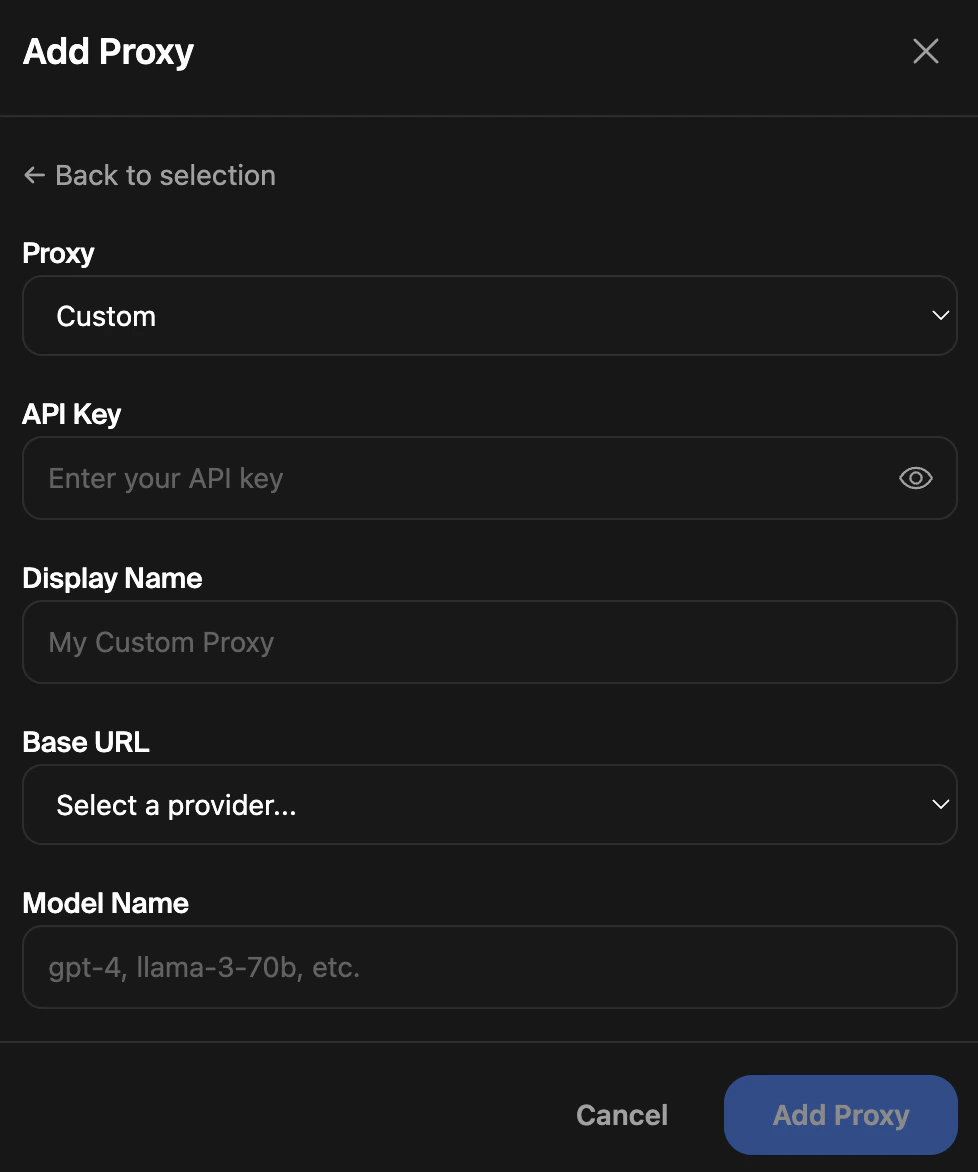
* **Display Name** — a label for this proxy
* **Base URL** — select from one of our options
* **Model Name** — the model identifier your endpoint expects, e.g. `gpt-4`, `llama-3-70b`
The endpoint must be compatible with the OpenAI chat completions API format.
### Save
Click **Add Proxy**. The proxy is now saved to your account.
## Editing a Proxy
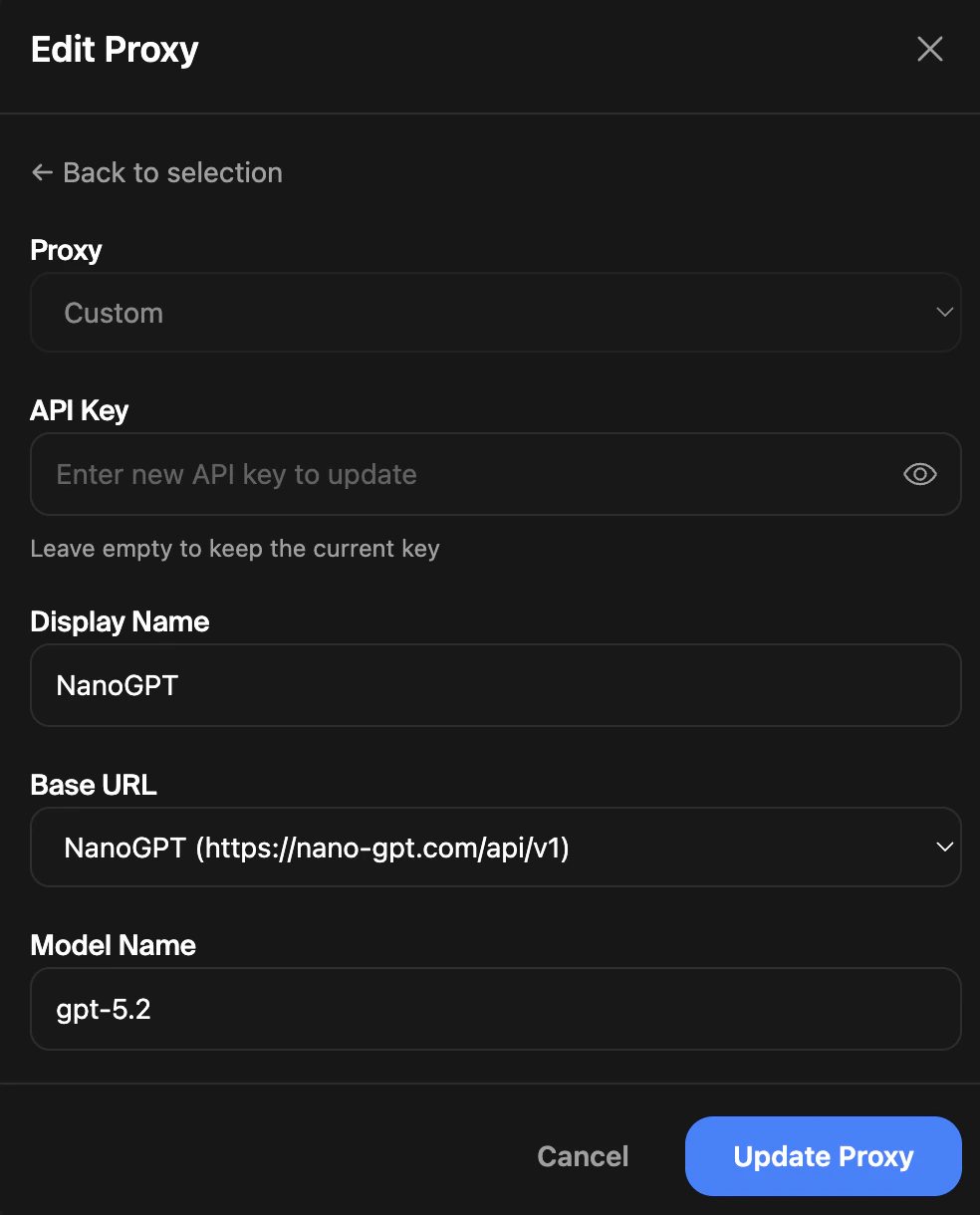
From the proxy selection list, click the pencil icon next to any saved proxy to update its configuration. You can change the base URL, model, or display name. Leave the API key field empty to keep the current key, or enter a new one to replace it.
### Configure proxy-specific fields
No extra configuration needed. Just provide your API key and you're set. You'll choose a specific model when selecting the proxy for a chat.
* **Display Name** (optional) — helps you tell apart multiple OpenRouter configs
* **Model Name** — the OpenRouter model identifier, e.g. `anthropic/claude-sonnet-4`, `openai/gpt-4o`
Find model names at [openrouter.ai/models](https://openrouter.ai/models).
* **Display Name** — a label for this proxy
* **Base URL** — select from one of our options
* **Model Name** — the model identifier your endpoint expects, e.g. `gpt-4`, `llama-3-70b`
The endpoint must be compatible with the OpenAI chat completions API format.
### Save
Click **Add Proxy**. The proxy is now saved to your account.
## Editing a Proxy
From the proxy selection list, click the pencil icon next to any saved proxy to update its configuration. You can change the base URL, model, or display name. Leave the API key field empty to keep the current key, or enter a new one to replace it.
 ## Removing a Proxy
To stop using a custom proxy for a chat, open the Proxy modal and select **ClankWorld Default**, then click **Save**. This resets the chat to use the platform's default model.
Your saved proxy configurations remain on your account even when individual chats are reset to the default. You can re-select them at any time.
## Removing a Proxy
To stop using a custom proxy for a chat, open the Proxy modal and select **ClankWorld Default**, then click **Save**. This resets the chat to use the platform's default model.
Your saved proxy configurations remain on your account even when individual chats are reset to the default. You can re-select them at any time.