> ## Documentation Index
> Fetch the complete documentation index at: https://docs.clank.world/llms.txt
> Use this file to discover all available pages before exploring further.
# Per-Chat Proxy Selection
> Assign different proxies to individual chats
Each chat on ClankWorld can use a different proxy. This lets you try different models with different characters, or keep one chat on the platform default while another uses your own API key.
## Selecting a Proxy for a Chat
### Open the Proxy modal
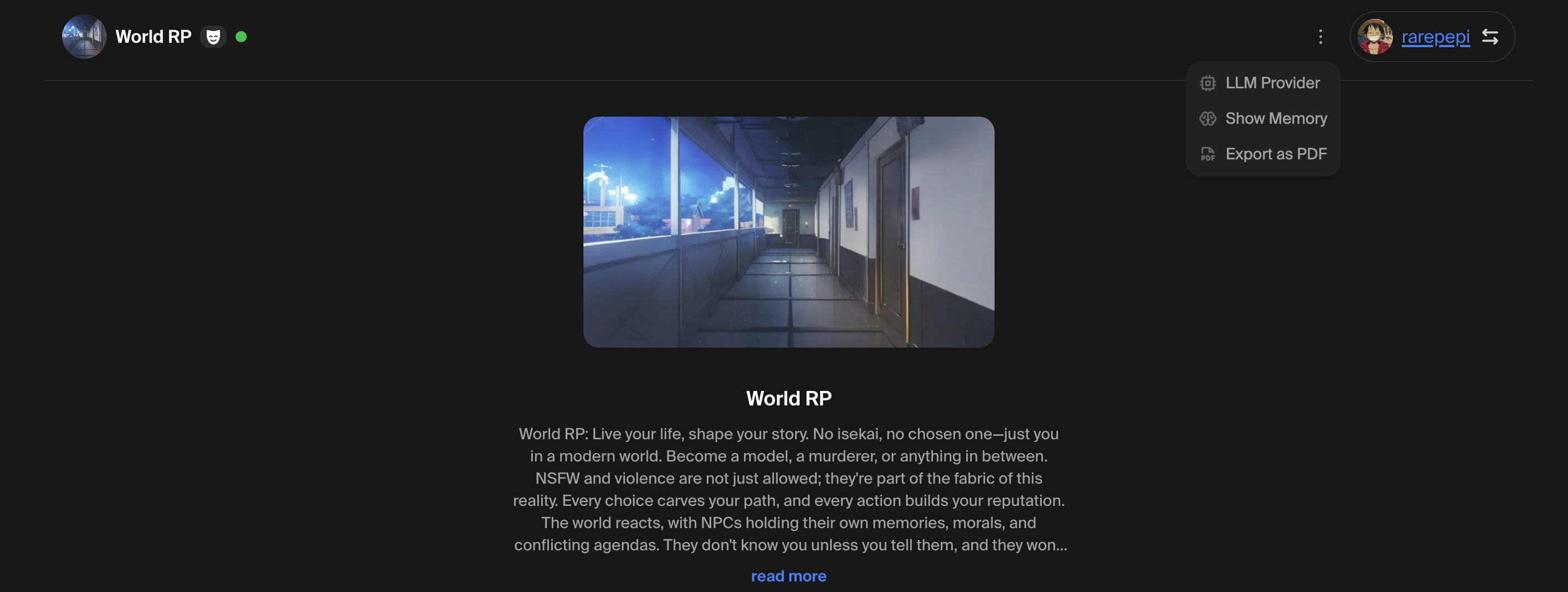
In the chat you want to configure, open the **Proxy** settings.
 ### Choose a proxy
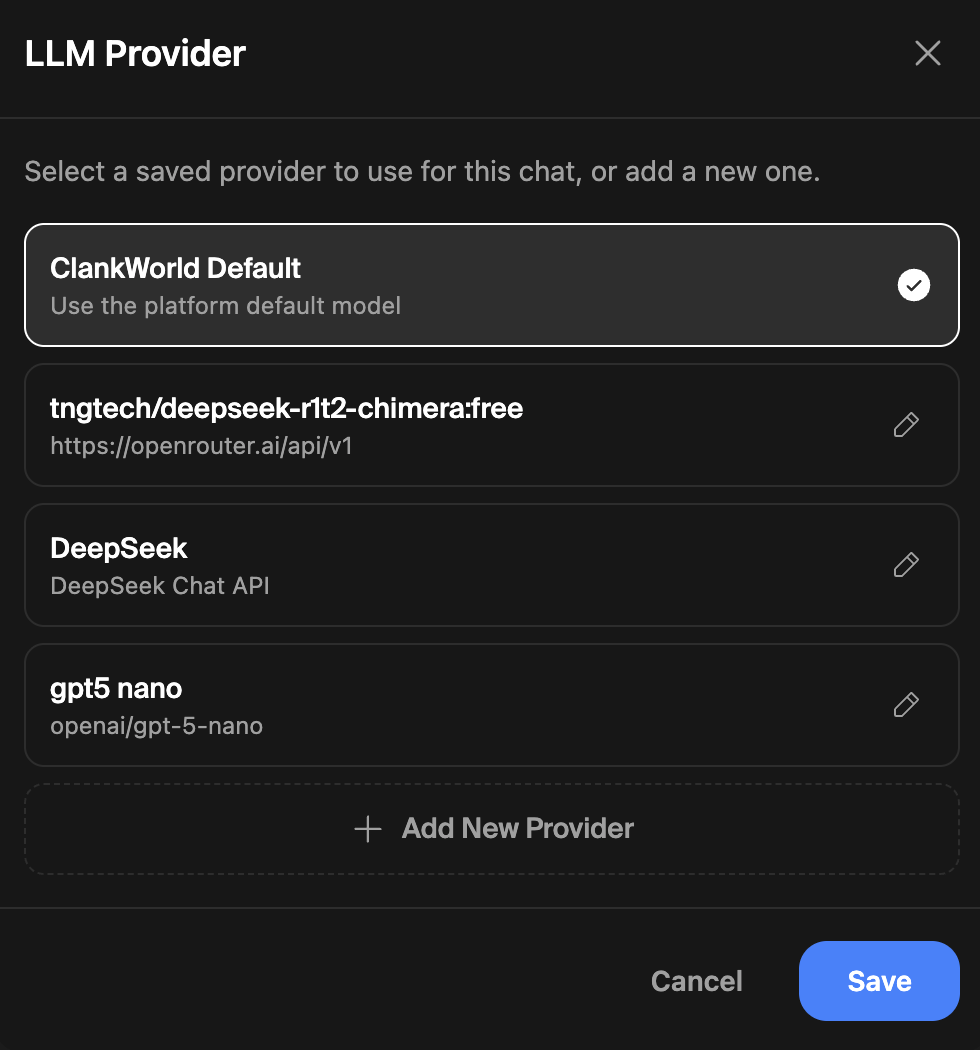
You'll see a list of your saved proxies plus the **ClankWorld Default** option. Select the one you want for this chat.
### Choose a proxy
You'll see a list of your saved proxies plus the **ClankWorld Default** option. Select the one you want for this chat.
 ### Pick a model (if applicable)
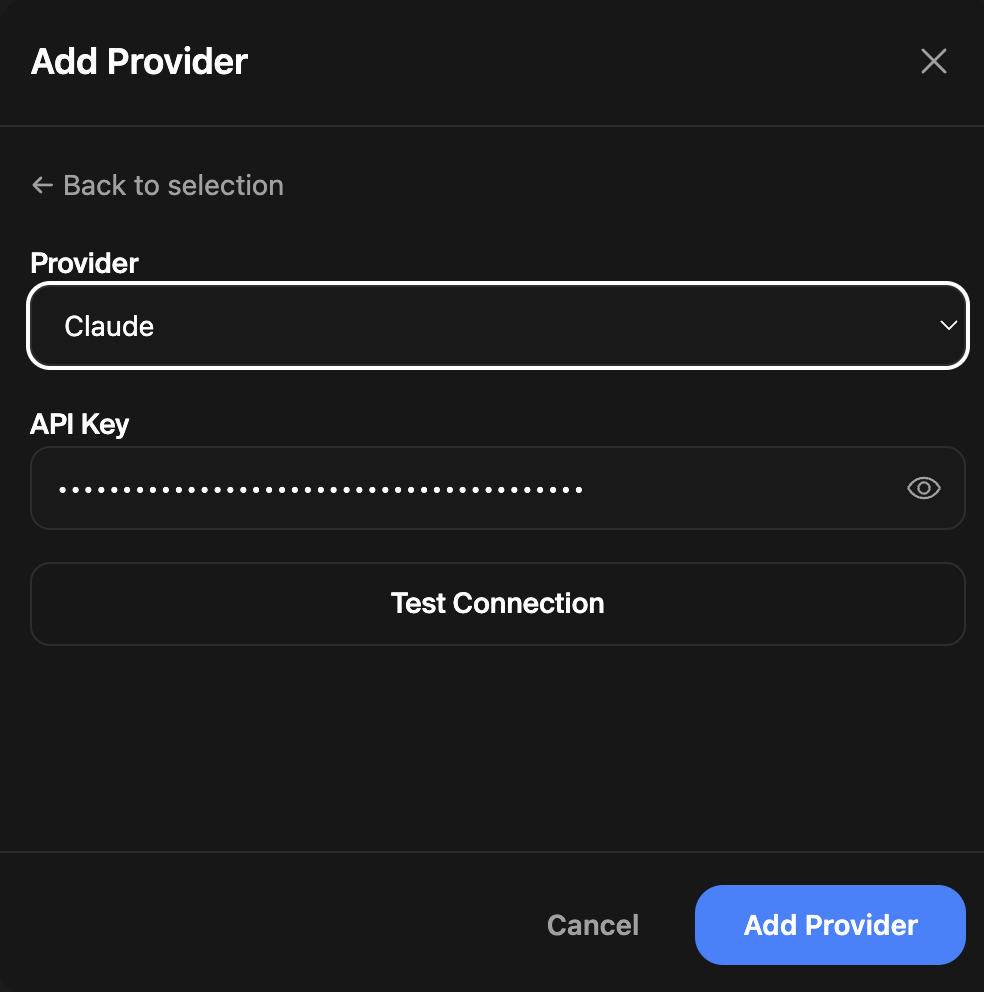
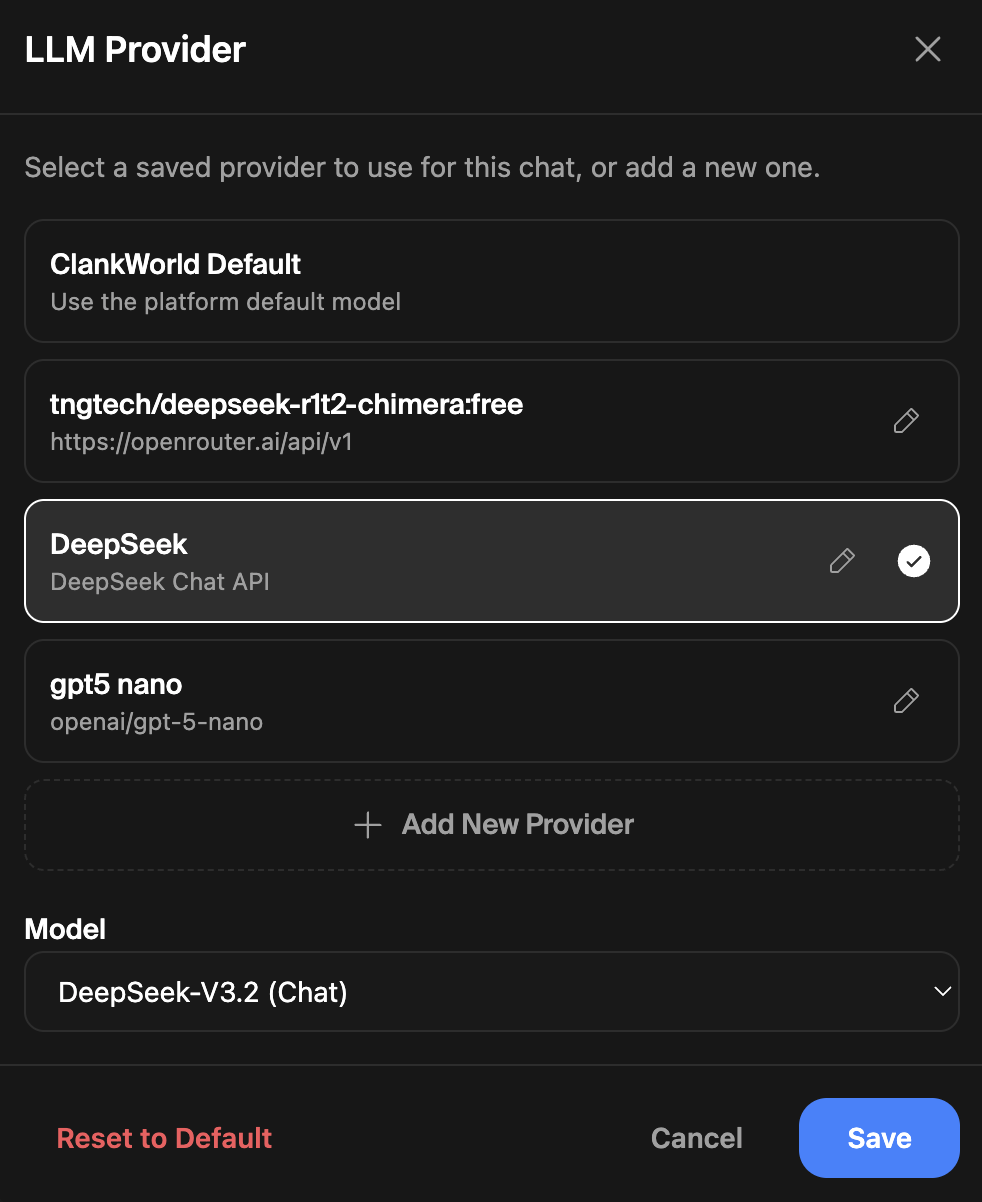
For proxies with multiple models (DeepSeek, Claude, Gemini), a **Model** dropdown appears after selecting the proxy. Choose the specific model you want.
For **Custom** and **OpenRouter** proxies, the model is set during proxy configuration.
### Pick a model (if applicable)
For proxies with multiple models (DeepSeek, Claude, Gemini), a **Model** dropdown appears after selecting the proxy. Choose the specific model you want.
For **Custom** and **OpenRouter** proxies, the model is set during proxy configuration.
 ### Save
Click **Save** to apply. The chat will now use the selected proxy and model for all future messages.
## Switching Back to Default
Open the Proxy modal, select **ClankWorld Default**, and click **Save**. If you've already been using a custom proxy, you can also click **Reset to Default** at the bottom of the modal.
### Save
Click **Save** to apply. The chat will now use the selected proxy and model for all future messages.
## Switching Back to Default
Open the Proxy modal, select **ClankWorld Default**, and click **Save**. If you've already been using a custom proxy, you can also click **Reset to Default** at the bottom of the modal.
 ## How It Works
* Proxy selections are **per-chat** — changing one chat doesn't affect others
* Your saved proxies are **global** — configured once, available in any chat
* API keys are **encrypted at rest** and never exposed in the UI after saving
* The proxy modal shows the currently active proxy with a checkmark
## How It Works
* Proxy selections are **per-chat** — changing one chat doesn't affect others
* Your saved proxies are **global** — configured once, available in any chat
* API keys are **encrypted at rest** and never exposed in the UI after saving
* The proxy modal shows the currently active proxy with a checkmark